Showing posts with label Bloging Tools. Show all posts

Tuesday, October 23, 2007

VB Code Formatter Plug-in for Windows Live Writer

Refer to my post yesterday, I've found a new plug-in for Windows Live Writer (WLW), that can paste my Visual Basic Source Code and keep it's format. I've test some codes, and it seems works fine for me.

Here's a sample:

VB Code
Public Shared Function NumberToEnglishWords(ByVal num As Long) As String
Return NumberToEnglishWords(num, 0)
End Function

Other features that seems great is the ability to add line number, which I'm still can't decide whether I should use it or not. The plug-in is made with C# and it's open source. I'd like to learn the source when I have a spare time.


At the first look (in Live Writer editor), the table border width is not quite right. I'll look the result after I post this on my blog.


This plug-in was made by Steve Dunn. You can visit his blog here, while the article about the plug-in can be found here.

Windows Live Writer

I've finished download and installed Windows Live Writer. I use version 1.0. Actually I want to download the newest live writer, but it seems Microsoft didn't provide direct link with it. Sucks.

My first impression using this tool is good. It has spell check, Nice layout. But actually, that's not important to me. All I want is a style that can post source code without messing them.

Well, let's try it:

Code

Public Shared Sub DrawNonRectangleBorder(ByVal g As Graphics, ByVal borderColor As Color, _
                                         ByVal angle As Integer, ByVal rect As Rectangle)

    Using pth As New Drawing2D.GraphicsPath
        pth.AddLine(angle, 0, rect.Width - angle - 1, 0)
        pth.AddLine(rect.Width - 1, angle, rect.Width - 1, rect.Height - angle - 1)
        pth.AddLine(rect.Width - angle - 1, rect.Height - 1, angle, rect.Height - 1)
        pth.AddLine(0, rect.Height - angle - 1, 0, angle)

        pth.CloseAllFigures()
        g.SmoothingMode = Drawing2D.SmoothingMode.AntiAlias

        g.DrawPath(New Pen(borderColor), pth)
    End Using
End Sub


Ok. First testing, it has one big disadvantage than Office 2007. When I copy source code directly from VS IDE, the font color didn't change. That's a big drawback to me. In Office 2007, it copies all styles, including font color. Unfortunately, the table messed up after I post. For now, let's see the final result first...

Thursday, April 26, 2007

Tables from Office 2007 to BlogSpot – Part II

Back to result from my previous post here, I'm disappointed from the results I get (Yeah, all of them). My first curious is because the table width are simply not dynamic. Let's try this again.

Table 1: Dynamic table with layout and auto fit content turned on

Code

Using lgb As
New LinearGradientBrush(Me.ClientRectangle, Color.Red, Color.Blue, LinearGradientMode.Horizontal)

e.Graphics.FillRectangle(lgb, Me.ClientRectangle)

End
Using


Table 2: Dynamic table with layout and auto fit to window turned on

Code

Using lgb As
New LinearGradientBrush(Me.ClientRectangle, Color.Red, Color.Blue, LinearGradientMode.Horizontal)

e.Graphics.FillRectangle(lgb, Me.ClientRectangle)

End
Using


Table 3: Dynamic table with layout and column width set to 100%

Code

Using lgb As
New LinearGradientBrush(Me.ClientRectangle, Color.Red, Color.Blue, LinearGradientMode.Horizontal)

e.Graphics.FillRectangle(lgb, Me.ClientRectangle)

End
Using


Okay, let's see the result now.

Tables from Office 2007 to BlogSpot

Since I'll use table a lot for posting a code, I'll do some test with this post. Here it goes.

Table 1: Default Table

Code

Using lgb As
New LinearGradientBrush(Me.ClientRectangle, Color.Red, Color.Blue, LinearGradientMode.Horizontal)

e.Graphics.FillRectangle(lgb, Me.ClientRectangle)

End
Using


Table 2: Table with layout (Font Bold by default)

Code

Using lgb As
New LinearGradientBrush(Me.ClientRectangle, Color.Red, Color.Blue, LinearGradientMode.Horizontal)

e.Graphics.FillRectangle(lgb, Me.ClientRectangle)

End
Using


Table 3: Table with layout (Font changed back to normal)

Code

Using lgb As
New LinearGradientBrush(Me.ClientRectangle, Color.Red, Color.Blue, LinearGradientMode.Horizontal)

e.Graphics.FillRectangle(lgb, Me.ClientRectangle)

End
Using


Table 4: Table with layout (Font changed to normal and same font)

Code

Using lgb As
New LinearGradientBrush(Me.ClientRectangle, Color.Red, Color.Blue, LinearGradientMode.Horizontal)

e.Graphics.FillRectangle(lgb, Me.ClientRectangle)

End
Using


Table 5: Table with layout (Font changed to normal and same font and same size)

Code

Using lgb As
New LinearGradientBrush(Me.ClientRectangle, Color.Red, Color.Blue, LinearGradientMode.Horizontal)

e.Graphics.FillRectangle(lgb, Me.ClientRectangle)

End
Using


Ok. Lets see the result for now

Difficult formatting between Office 2007 and Blogspot

For strange reason, I have difficulty posting my blog with Office 2007 especially when I posting blog with a source code. I used my defined table and color for visual basic code. Every time I posted some codes; it always messed up, the formatting and text size. It might have something to do with office 2007 itself. Maybe I should post some test article and find another reference in the net.

Let's try a little test here and see what I see in my blog:

Code

Using lgb As
New LinearGradientBrush(Me.ClientRectangle, Color.Black, Color.Black, LinearGradientMode.Horizontal)


Dim cb As
New ColorBlend(6)


Dim f As
Decimal = 0.0F


cb.Colors = New Color() {Color.Red, Color.Orange, Color.Yellow, Color.Green, Color.Blue, Color.Violet}


For i As
Integer = 0 To 5

cb.Positions(i) = i / 5


Next


lgb.InterpolationColors = cb


e.Graphics.FillRectangle(lgb, Me.ClientRectangle)

End
Using


My reason to post a blog from Office 2007 because it has built in spell checker and you can build table and copy source with exact format from original (indention, colors, etc). So, I have no choice than stick with this method and find any useful trick to solve my problems.

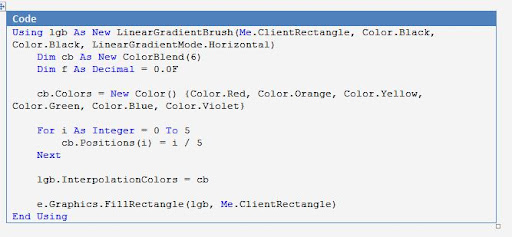
Now, lets compare it with my original word document: